T-shirt design has gotten a lot faster thanks to AI. If you’ve ever wished you could turn an idea into a ready-to-print shirt in minutes, the best AI for T-shirt design can make it happen.
With options like Midjourney, Adobe Firefly, and WYI Design Tool, it takes barely any work to make playful graphics or clean typographic designs- you can skip the tricky parts and focus on creativity.
To learn more about those and 11 other great tools, keep reading.
How AI T-Shirt Design Works
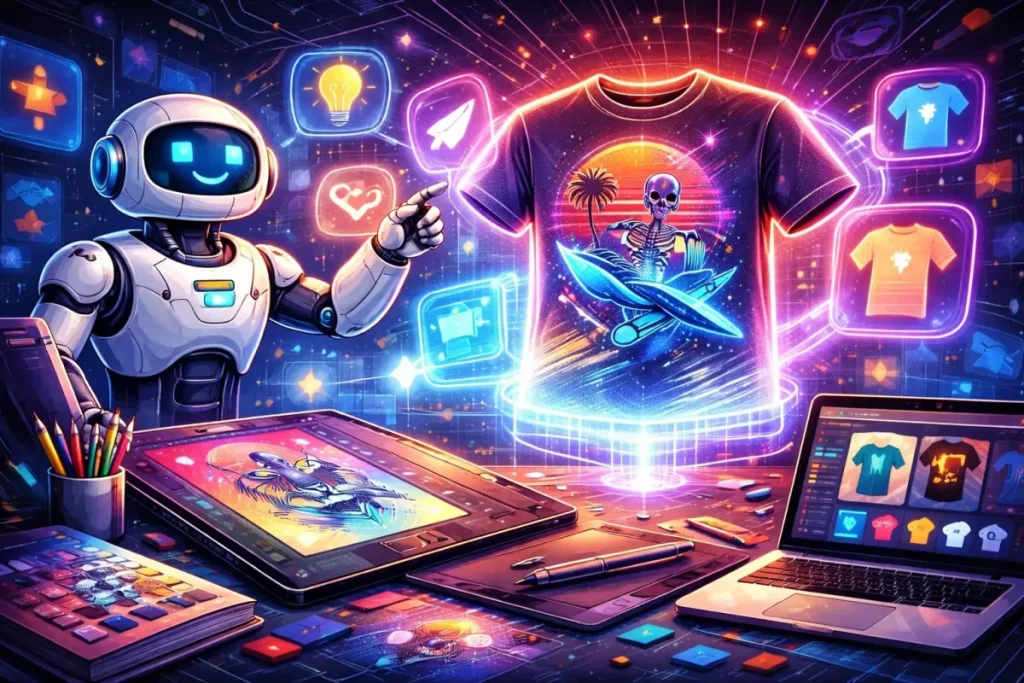
AI basically turns your ideas into images. You just type what you’re thinking, and it will spit out a few options. You can tweak them a bit, or just pick the one that works.
Like, say you want a surfing skeleton with a neon sunset. You type that in. The AI shows a few versions. One skeleton leans weird, another looks fine, maybe the colors aren’t exactly right. You adjust a little and there you go- you’ve got something ready.
Some tools even put it on a shirt right away. You can see how it sits, how it reads, what looks off. No extra apps and no complicated steps. Fast, messy, but it works; and you can try different ideas without slowing down.
14 Best AI for T-Shirt Designs
There isn’t one “best” tool. Some are great at making art, some are great at mocking things up, and some are basically small factories for pumping out designs. Here’s how these tools really fit into the workflow.
1. Bulk Mockup
This one never touches your artwork. It’s what you use after you already have designs. If you’ve ever had to place the same graphic onto 50 shirts in Photoshop, this is the thing that makes you stop doing that. You drop in a folder, click once, and it does the boring part for you. It’s a monthly tool, roughly in the $15 range.
2. Copilot (Bing Image Creator)
This is the easy, no-setup way to play with AI images. You type what you want, it gives you something back. It’s good for exploring ideas and trendy looks, but it still struggles with clean, reliable text inside images. You can use it free in limited amounts, or unlock more usage through Microsoft’s paid plan.
3. Mystic POD
This feels less like an art toy and more like a production tool. It generates designs, cleans them up, scales them, removes backgrounds, and even helps with product text. If you’re trying to build a lot of listings instead of just one shirt, this is the kind of tool that makes sense. It’s priced like a low-cost SaaS, starting under $10.
4. Playground AI
Think of this as a mix between an AI generator and a light image editor. You don’t just generate and leave. You generate, fix things, move stuff around, and polish the result. It’s good if you like having control instead of rerolling prompts all day. There’s a free tier, and the paid version is in the low teens per month.
5. Ideogram AI
Most image models are bad at words. This one isn’t. That’s its whole personality. If your shirt depends on the text being readable and styled correctly, this is one of the safer choices. It’s not the most consistent for pure illustration work, but for slogan-style designs, it does its job.
6. Flux Pro AI
This is the “make it look expensive” generator. It’s aimed at detailed, high-resolution images that hold up in print. If you’re doing complex graphics or realistic art, this one stands out. You get a small daily allowance for free, and the paid plan sits in the mid-teens per month.
7. Kittl
Kittl works best with logos, badges, and clean vector graphics. Its type tools are strong, and AI acts like a co-pilot. For shirts built from bold lines, lettering that pops, or minimalist layouts instead of hand-drawn art, this is ideal. Free to start, $10 for full access.
8. OpenArt
This is for people who don’t want to make one design. They want to make a hundred. You can set up styles or poses and generate in bulk. It’s built for volume and iteration more than careful one-off artwork. Pricing starts pretty low, around $7.
9. Pietra Studio
Pietra is closer to a business platform than a design app. You can create designs, refine them, and then move straight into production and selling. If you’re thinking in terms of “brand” instead of “one cool shirt,” this is the kind of tool that starts to make sense.
10. WYI Design Tool
This one is dead simple. You type an idea, and it shows up on a shirt. No accounts, no setup, no complexity. It’s great for quick ideas and text-based shirts, but you won’t get deep stylistic control.
11. Midjourney V7
Midjourney is where you go when you care more about art than workflow. It’s excellent for illustrations, characters, and unique styles. It’s not built for T-shirts, doesn’t show mockups, and still isn’t reliable with text. But for visuals, it’s top-tier.
12. Adobe Firefly
Firefly is the safe, corporate option, in a good way. It works right inside Photoshop and Adobe’s apps, so you can drop designs straight into your workflow. The images will come out polished and ready to print, even if they lean a bit safe creatively.
13. Ideogram (Worth Repeating for Text Shirts)
If your entire business is built on words, jokes, slogans, statements, Ideogram deserves special attention. It’s one of the few tools that consistently produces readable, styled lettering instead of random gibberish.
14. Stockimg.ai
This one is about speed, not artistry. It’s good for pumping out simple, usable designs quickly, especially if you’re testing ideas on marketplaces. Though results won’t be blowing anyone away, they’ll still be reliable. Utilizing ai tools for creative jewelry design can significantly enhance your workflow, allowing you to explore various styles and techniques with ease. These platforms often provide user-friendly features that streamline the design process while maintaining a level of quality that can satisfy customers. As you refine your concepts, you’ll find that these tools can inspire innovative designs that resonate in the competitive market.
How To Write Prompts For AI T-Shirt Designs
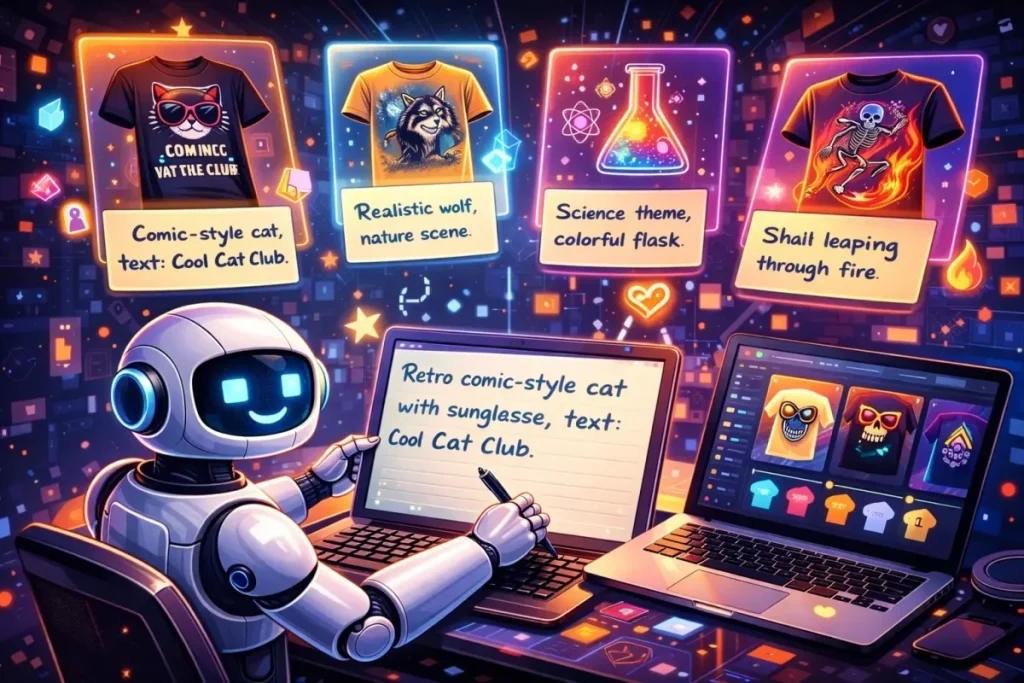
If the result looks off, it’s usually the prompt you need to write it correctly. The AI only follows what you give it. So keep things simple: subject, style, text, colors.
You can do something like: “Retro comic-style cat with sunglasses, yellow background, text: Cool Cat Club.”
That’s enough to get something usable. You can always tweak it afterwards.
Short prompts tend to work better than long ones. You can add things like “centered” or “front-facing.” And yeah, expect to try a few times.
Getting Your AI Designs Ready for Printing
This is the part where you make sure your design survives contact with the real world. A couple small checks here can save you from wasting money on bad prints.
- Export a Clean File: Save it as a PNG with a transparent background. Use 300 DPI or higher so the print doesn’t look cheap.
- See It in Context: Put it on a shirt mockup about 8-10 cm below the collar. Center it and scale it until it feels natural.
- Tame the Colors: Test it on the shirt colors you’ll actually use. Some designs need a little more punch. Some need less. Adjust until it looks right.
- Line Them All Up: Throw all your designs onto mockups and look at them together. You’ll spot sizing and placement issues way faster this way.
- Trust Your Eyes: Do a final look-over. Check the text, the edges, the alignment. If something bugs you now, it’ll bug you a lot more after it’s printed.
Conclusion: Selling & Using Your AI T-Shirts
After your artwork is finished, seeing it on a shirt will probably surprise you a lot. Some details that looked perfect on the screen might need shifting, while others will shine in a new way. With the best AI for T-shirt design, those “aha” moments happen fast, letting your designs move from idea to wardrobe effortlessly.